Tutorial
Set up your seller page
From a new account to a published page buyers can find, in about ten minutes.
Anyone can sell on PerfectPal: you don't need breeder credentials. Here's how to go from nothing to a page buyers can see.
1. Create your account
- Go to Sell on PerfectPal and choose Create your seller page (or Sign up at the top of any page).
- Enter your name, your email address and a password of at least 10 characters.
- Open the email from PerfectPal and press Confirm email. You can open it on any device, like your phone: the "Check your email" page carries on by itself once you have.
Tip: Nothing after a few minutes? Look in your spam or promotions folder, or ask for a new link on the "Check your email" page. See Emails aren't arriving.
2. Answer the setup questions
Once you're signed in, choose Set up your seller page on the Sell page. Four short steps follow, and you can change every answer later on your profile.
- About you: choose what describes you best (occasional seller, hobbyist, breeder, business or rescue organisation). This shows on your page so buyers know what to expect. Untick I breed my own animals if you resell or keep stock without breeding: breeding records then stay off your dashboard.
- Name: the name shown to buyers, and your web address on PerfectPal (
perfectpal.ca/s/your-name). The form tells you if an address is taken. - Location: your country and postal or ZIP code. Only your city and province or state are ever shown publicly.
- What you raise: tick the animals you raise. Your dashboard shows the tools those animals use. If another seller told you about PerfectPal, enter their referral code here.
Choose Create my seller profile. You land on your dashboard.
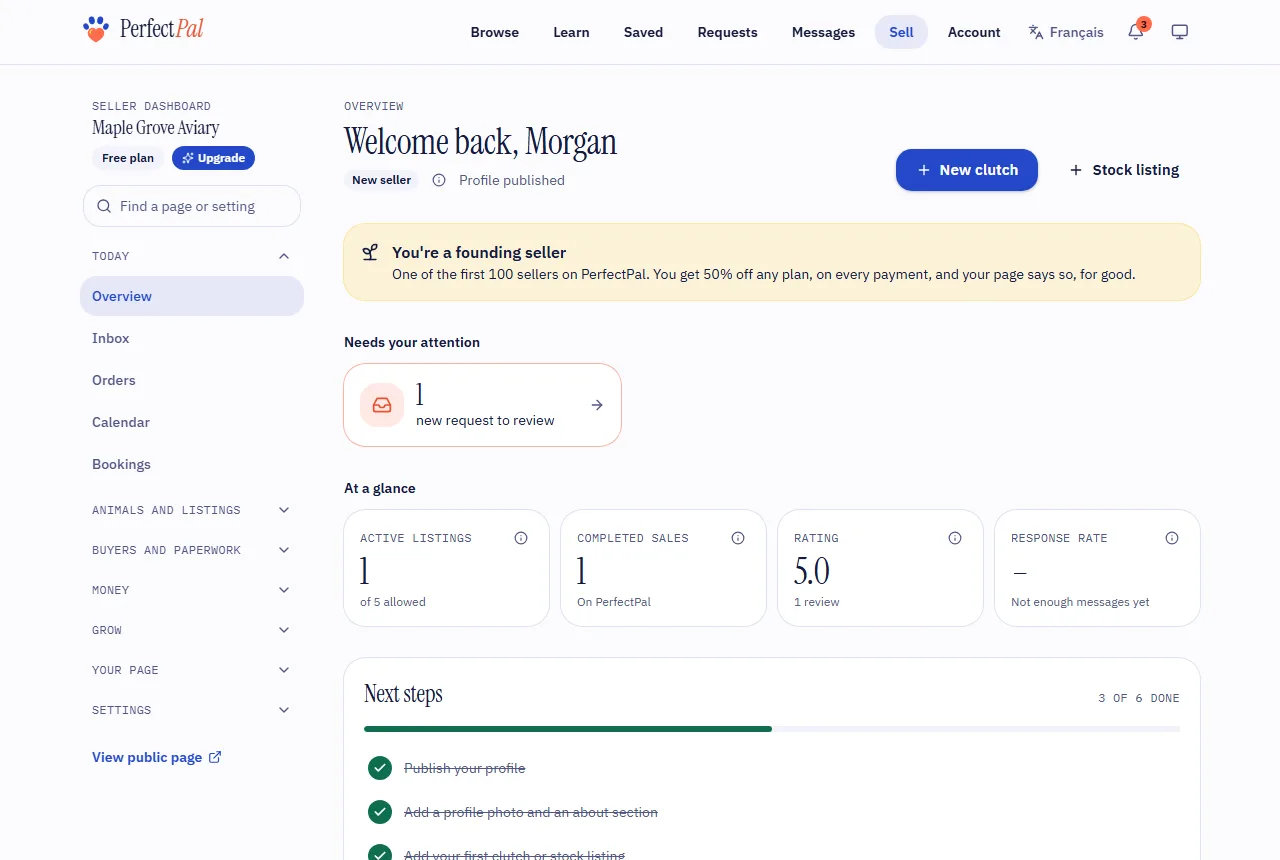
3. Fill in your profile and publish it
Your page stays private until you publish it.
- In the menu, open Your page › Profile.
- Add a profile photo, a cover image and an About section: your experience, how you raise your animals and what buyers can expect.
- Pick the languages you speak with buyers.
- Choose Publish profile.
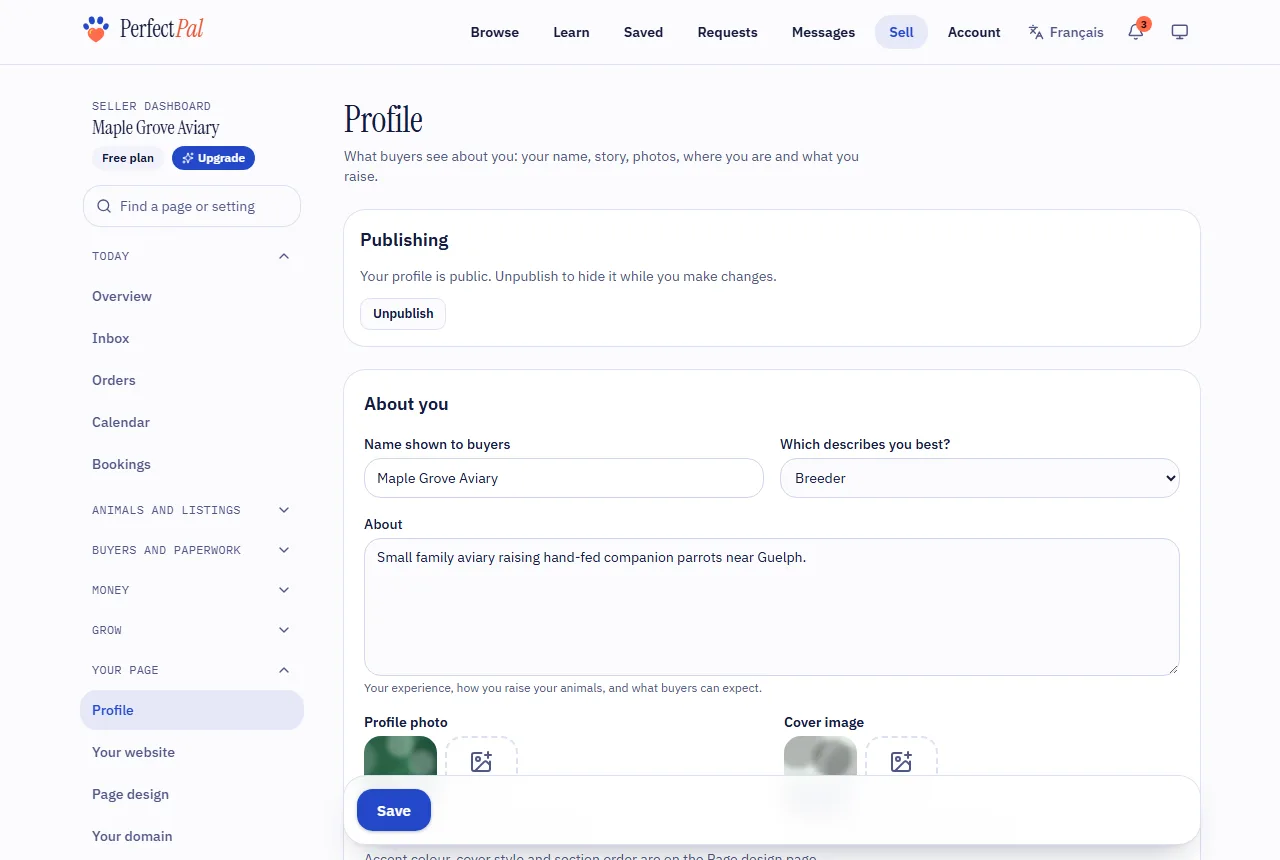
You can choose Unpublish any time to hide your page while you make changes.
4. The next steps
The dashboard's Next steps list keeps track of the rest:
- Verify your phone number under Settings › Verification.
- Set up card payments by connecting Stripe. See Connect Stripe to take card payments.
- Apply for verification badges, if you hold any. See Badges explained.
Phone verification plus card payment setup (or an ID check by staff) moves your label from "New seller" to "Identity verified". See Trust levels and labels.
What's next
Updated October 19, 2026
Was this helpful?
Still need help?
PerfectPal staff read every message. Tell us what you were trying to do and what happened.
- Find your way around the dashboardWhat's in each part of the seller dashboard, and how to hide the parts you don't use.
- Trust levels and labelsWhat "New seller", "Identity verified" and "Established seller" mean, and how you move up.
- Rules every listing followsGo-home ages, species rules where you live, and prohibited listings apply to every seller, whatever their label.
- Your seller page and websiteYour profile, your website's pages and sections, page design, and ways to share your page.